
WPS Office
Screenshots
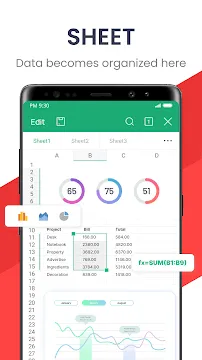
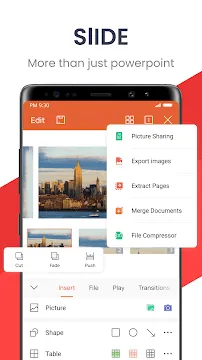

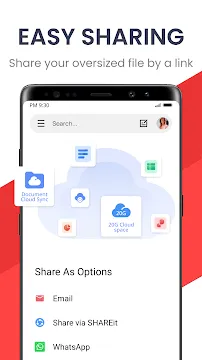
WPS Office-PDF, Word, Sheet is a powerful mobile application for Android users. It helps you manage your documents easily on the go. Furthermore, this app combines essential office tools into one convenient package. You can create, edit, and share files directly from your smartphone or tablet.
Therefore, you do not need multiple apps clogging up your device storage. WPS Office provides everything required for daily work and study tasks. Additionally, it offers seamless compatibility with major file formats. This means you can open and modify documents without losing their original formatting.
How To Download And Install WPS Office APK For Android
WPS Office is a powerful tool for your mobile device. It combines Word documents, Spreadsheets, and PDF files into one single app. This guide explains how to get the APK version onto your Android phone or tablet quickly and safely.
Why Use the WPS Office APK?
Many users prefer the APK version for specific reasons. Sometimes, the official app store is unavailable. Other times, you might need a specific version of the app that works better with your older device. Installing the APK gives you more control over your software.
Step 1: Prepare Your Android Device
Android security usually blocks apps from unknown sources. You must change this setting before you start the installation.
- Open your device Settings.
- Tap on Security or Privacy.
- Find the option labeled Install Unknown Apps or Unknown Sources.
- Select your preferred web browser.
- Toggle the switch to Allow.
Step 2: Download the WPS Office APK
Now you are ready to get the file. Follow these simple steps to ensure a smooth download:
- Open your mobile web browser.
- Visit Filetomob.com
- Search for WPS Office APK Download.
- Navigate to the app page.
- Click the Download APK button.
- Wait for the notification that the download is complete.
Step 3: Install the App
Once the download finishes, you must run the file to install the office suite.
- Open your File Manager app.
- Navigate to the Downloads folder.
- Tap on the WPS Office APK file.
- A prompt will appear asking for permission to install.
- Tap Install at the bottom of the screen.
- Wait a few seconds for the process to finish.
Step 4: Launch and Set Up
After the installation concludes, you can start using the app immediately.
- Tap Open from the installation screen or find the icon on your home screen.
- Accept the Terms of Service and Privacy Policy.
- Grant the necessary permissions for storage and files.
- Sign in or skip the registration to reach the main dashboard.
WPS Office For Android: Core Features
WPS Office is a powerful all-in-one app for Android users. It combines Word, Excel, and PowerPoint into one single application. This makes mobile productivity simple and efficient.
Below are the core features that make this app a top choice for professionals and students.
1. The Document Editor (Writer)
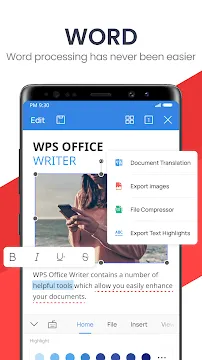
The Writer component serves as your primary tool for text documents. It works perfectly with standard formats like .doc and .docx. Because of this high compatibility, you can open files from any source without losing formatting.
- Mobile Viewing Mode: This feature automatically reflows text to fit your screen. You no longer need to zoom in and out to read a single sentence.
- Intuitive Editing: You can change fonts, add images, and adjust margins with a few taps.
Pro Tip: Boost your speed by using Handwrite Input or Voice Typing. These tools allow you to take notes quickly when you are on the move.
2. The Spreadsheet Manager (Sheets)
Managing data on a phone can feel difficult, but the Spreadsheet Manager simplifies the process. It handles complex formulas and visual charts with ease. In fact, it supports over 400 functions, making it a robust alternative to desktop software.
- Smart Sum: This tool identifies the numbers you want to add. It saves time by calculating totals instantly.
- Data Comparison: Use this feature to find differences between two data sets on a small touch screen.
- Touch Optimization: Large buttons and clear menus help you navigate rows and columns without frustration.
3. The Presentation Creator (PPT)
Creating a slideshow on your Android device is fast and creative. You can design professional slides with smooth animations and transitions. Consequently, your presentations look polished even if you made them on a bus or train.
- Wireless Presentation: This unique feature allows you to cast your slides to a TV or projector. It uses Wi-Fi or NFC technology to connect instantly.
- Shared Play: You can invite others to view your slides on their own devices simultaneously.
- Layout Templates: Choose from various pre-made designs to start your project quickly.
Summary of Benefits
WPS Office transforms your smartphone into a portable office. By using these core features, you stay productive anywhere. The app focuses on speed, compatibility, and ease of use for every task.
WPS Office: AI Assistant
Revolutionize Your Productivity with WPS Office AI for Android
The mobile office experience just underwent a massive transformation. WPS Office has evolved from a simple document viewer into a powerhouse of productivity. By integrating WPS AI, the suite now offers intelligent features that rival the most advanced desktop tools. Whether you are a student, a business professional, or a freelancer, these updates change how you handle documents on your Android device.
AI ChatPDF: Talk to Your Documents
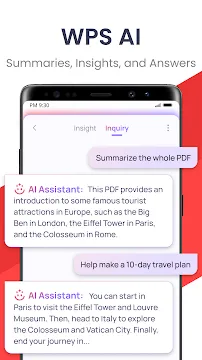
Reading long reports often feels overwhelming. With the new AI ChatPDF feature, you no longer need to scroll through endless pages. You can now “chat” directly with any PDF file.
- Instant Summaries: Ask the AI to condense a 50-page technical manual into five key bullet points.
- Targeted Questions: Inquire about specific data points, such as “What was the total revenue in Q3?” and receive an immediate answer.
- Time Saving: Navigate complex legal or academic papers in seconds rather than hours.
This tool acts like a personal researcher that lives inside your phone, making deep reading more efficient.
AI-Generated Content (AIGC): Your Mobile Ghostwriter
Writer’s block is a problem of the past. The AIGC integration allows you to generate high-quality drafts using simple prompts. Instead of staring at a blank screen, you can provide a quick instruction and watch the AI work.
- Business Correspondence: Type “Draft a professional meeting summary” and get a structured document instantly.
- Creative Outlines: Generate ideas for blog posts, essays, or project proposals.
- Content Expansion: Provide a few notes, and the AI will expand them into full, coherent paragraphs.
This feature ensures that you stay productive even when you are away from your desk.
AI Rewriting and Polishing: Perfect Your Tone
Writing on a small screen can lead to errors or awkward phrasing. The AI Rewriting tool acts as a sophisticated editor. It does more than just check your spelling; it enhances the entire quality of your work.
- Grammar Correction: Automatically fix complex grammatical errors.
- Tone Adjustment: Change a casual email into a formal request with one tap.
- Clarity Boost: The AI suggests ways to make long, confusing sentences shorter and more impactful.
You can now send important documents with total confidence, knowing they sound professional and polished.
AI OCR: Turn Photos Into Editable Text
The latest AI OCR (Optical Character Recognition) technology bridge the gap between the physical and digital worlds. It uses high-accuracy scanning to recognize text in images.
If you take a photo of a printed contract or a whiteboard, the AI extracts the text with incredible precision. You can then edit that text directly in Word or Sheets. This eliminates the need for manual typing and reduces human error significantly.
Why the New WPS AI Matters
WPS Office has successfully moved beyond basic editing. By incorporating these intelligent assistants, it provides a seamless workflow. You can scan a document with AI OCR, summarize it with ChatPDF, and then draft a response using AIGC.
These updates ensure that Android users have access to world-class AI tools without needing multiple subscriptions. The interface remains simple and clear, making it easy for anyone to master these advanced features. Try the new WPS Office today and experience the future of mobile intelligence.
Master Your Workflow: WPS Office Cloud Syncing
Modern work moves fast, and you need tools that move with you. WPS Office-PDF, Word, Sheet for Android turns your smartphone into a mobile powerhouse. Beyond just viewing documents, this app offers a robust ecosystem for cloud collaboration and instant syncing. Whether you are a student or a professional, staying connected to your files is no longer a luxury—it is a necessity.
Experience Seamless WPS Cloud Syncing
One of the standout features of this suite is WPS Cloud. Every user receives 1GB of free cloud storage immediately. This space acts as a digital bridge between all your hardware.
- Edit on the Go: Start a draft of a report on your Android phone during your morning commute.
- Finish at the Desk: Open your PC at the office, log in, and find your document waiting for you exactly where you left off.
- Automatic Updates: The system saves your progress in real-time. You never have to worry about manual transfers or losing data due to a dead battery.
Because your files live in the cloud, you save precious internal storage on your mobile device. This setup ensures that your most important work is always accessible, regardless of which screen you are using.
Connect with Third-Party Integrations
WPS Office does not force you to stay within its own ecosystem. It understands that you likely already use other storage services. Therefore, the app integrates perfectly with the world’s most popular cloud providers.
You can easily link your accounts from:
- Google Drive
- Dropbox
- OneDrive
Once you connect these services, you can open, edit, and save files directly to those platforms from within the WPS interface. This flexibility means you can keep your personal files in one place and your professional work in another while using a single app to manage them all.
Effortless File Sharing and Collaboration
In a collaborative world, sharing files should be instant. WPS Office offers several creative ways to send your documents without the hassle of large email attachments.
1. Instant Social Media Links
Quickly generate a sharing link for your document. You can send these links directly through apps like WhatsApp or Telegram. Your teammates can view or download the file with one simple click.
2. QR Code Sharing
If you are giving a presentation or working in a group setting, use the QR code feature. Others can simply scan the code on your screen to download the document instantly to their own devices.
3. Wi-Fi Direct
When you are in the same room as a colleague, use Wi-Fi Direct. This method allows for high-speed file transfers without using your mobile data or an active internet connection.
Why Choose WPS Office for Collaboration?
WPS Office simplifies complex tasks. By using an active voice in its design, the app puts you in control of your productivity. It combines word processing, spreadsheets, and PDF management into one lightweight package.
The synchronization features eliminate the “version control” nightmare. Since everyone accesses the most recent version from the cloud, errors decrease and efficiency rises. Transitioning from mobile to desktop feels natural and fluid.
Ultimately, this app provides the freedom to work from anywhere. It removes the barriers between your devices and your collaborators. Start using the cloud features today to transform how you handle your digital life.
Master the PDF Toolkit in WPS Office for Android
WPS Office transforms your Android device into a portable workstation. While it handles Word and Excel documents with ease, the PDF Toolkit truly sets it apart. This suite of tools allows you to manage professional documents without needing a desktop computer.
PDF Editing on the Go
Most mobile apps only let you view PDFs. WPS Office breaks this barrier. You can edit text and images directly within the file.
- Edit Text: Tap on any paragraph to change the wording. You can fix typos or update dates in seconds.
- Modify Images: Move, resize, or replace photos within the document.
- Format Layouts: Adjust font sizes and colors to maintain a professional look.
This feature saves time when you are away from your desk. You no longer need to wait until you get home to make a quick correction.
Conversion Power
Formatting issues often frustrate mobile users. WPS Office solves this by offering high-quality file conversions. You can switch between formats effortlessly.
- PDF to Office: Convert your PDF into Word, Excel, or PowerPoint files. This allows for deep editing and data manipulation.
- Office to PDF: Turn your resumes or reports into PDFs. This ensures your formatting stays perfect when you share the file.
- Image to PDF: Use your phone camera to scan physical papers. The app turns these photos into clean, searchable PDF documents.
These conversions happen quickly. The app preserves the original layout, so you do not lose your hard work during the process.
Annotation and Signing
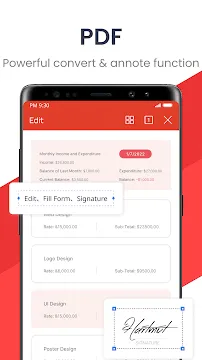
Digital workflows require fast approvals. WPS Office includes robust annotation tools for collaboration. You can highlight important sentences or underline key facts to guide your team.
Adding a signature is equally simple. You do not need a printer or a scanner. Use your finger or a stylus to sign your name directly on the screen. You can save your signature to use it again later. This feature makes remote work seamless and cuts down on paper waste.
Comments are also vital for feedback. You can drop a comment bubble anywhere on the page. This helps you communicate changes clearly without altering the original text.
Essential PDF Tools
Large files often clog up Android storage. WPS Office provides several utility tools to organize your digital library.
- Merge: Combine multiple PDF files into a single document. This is perfect for gathering receipts or school notes.
- Split: Extract specific pages from a long report. You can create a smaller file containing only the data you need.
- Compress: Reduce the file size of heavy PDFs. Smaller files are easier to send via email or chat apps.
A Guide to WPS Office Mobile Optimization
Working on a mobile device should feel natural. WPS Office makes this possible. This suite handles PDFs, Word files, sheets, and slides. Everything works smoothly on your Android phone. You no longer need a laptop for quick edits or complex tasks.
Mastering WPS Writer with Mobile View
Reading long documents on a small smartphone screen often feels frustrating. Usually, you have to pinch and zoom constantly to see the text. WPS Office solves this problem with its Mobile View feature.
- Adaptive Text: When you toggle Mobile View, the text automatically wraps to fit your screen width.
- Eye Comfort: You can read naturally without scrolling horizontally.
- Quick Edits: The interface places essential formatting tools right at your fingertips.
- Smooth Navigation: Use the navigation pane to jump between headings instantly.
Because the app prioritizes readability, you can review contracts or essays during your commute. You simply tap the icon, and the layout shifts into a clean, vertical stream. This active approach to mobile reading prevents eye strain and saves time.
Spreadsheets
Many people assume that complex data belongs only on a desktop. However, WPS Spreadsheets proves otherwise. It handles heavy calculations and data visualization with surprising ease.
Formulas and Calculations
The app includes a comprehensive library of formulas. You can manage budgets or analyze sales data directly from your Android device. The keyboard adapts to show numbers and mathematical symbols, which makes data entry faster.
Data Visualization
Visualizing trends is vital for understanding your numbers. WPS allows you to create vibrant charts and graphs on your phone.
- Select your data range with a few taps.
- Choose from various chart types like pie, bar, or line graphs.
- Customize colors and labels to make your data pop.
Transitioning from a raw list of numbers to a clear visual aid takes only seconds. This functionality ensures you stay productive even when you are away from your desk.
Professional Presentations Anywhere
Presenting often requires bulky laptops and tangled cables. WPS Presentations changes this dynamic by utilizing wireless technology. You can lead a meeting using nothing but your Android phone.
Wireless Projection
WPS supports Miracast and DLNA protocols. These features allow you to project your slides onto a smart TV or a compatible monitor wirelessly.
- Connect your phone and the display to the same Wi-Fi network.
- Open your presentation in WPS Office.
- Tap the projection button to cast your screen.
Remote Control Features
While projecting, your phone acts as a remote. You can swipe to change slides or use a virtual laser pointer to highlight key points. This setup gives you the freedom to move around the room and engage with your audience.
Optimizing Your Mobile Workflow
WPS Office organizes your digital life into one accessible hub. It integrates cloud storage so you can sync files across devices. This means you can start a report on your PC and finish it on your phone.
The app uses a clear, intuitive interface. Every tool serves a specific purpose, which removes clutter. By choosing mobile-optimized software, you gain the flexibility to work from anywhere. Use these features to turn your Android device into a high-performance workstation. Clear layouts, wireless tools, and smart viewing modes make WPS Office a top choice for modern productivity.
WPS Office: Technical Performance, Battery Life, and Smart Optimization
WPS Office remains a top choice for Android users who need to manage documents on the go. This versatile app combines Word, Excel, PowerPoint, and PDF tools into a single interface. However, its technical performance varies depending on your hardware and settings.
Understanding how to optimize the app ensures a smooth experience whether you use a budget phone or a high-end device.
Battery and Resource Usage
WPS Office adapts its performance based on your phone’s internal power. Efficiency is the core of its mobile design, but your hardware dictates the final result.
Entry-Level Android Phones
Budget devices often have limited RAM and slower processors. WPS Office runs well on these phones because it uses a unified engine.
- Memory Management: The app compresses background processes to prevent crashes.
- Storage Impact: Since it combines multiple tools into one app, it saves space compared to installing individual office apps.
- Optimization Tip: Clear the app cache regularly. This keeps the interface snappy on devices with less than 4GB of RAM.
Flagship Android Phones
On flagship devices, WPS Office unlocks its full potential. You will notice faster loading times for large PDF files and complex spreadsheets.
- Multitasking: High-end phones allow you to switch between a heavy “Sheet” and a “Word” document instantly.
- Smooth Scrolling: Higher refresh rates on flagship screens make reading long documents feel fluid.
- Power Consumption: Modern processors handle the app’s workload efficiently. This results in minimal battery drain during standard typing tasks.
Dark Mode: Improving Visual Comfort
Many professionals review documents late at night. Standard white backgrounds emit significant blue light, which causes eye strain and disrupts sleep patterns. WPS Office includes a dedicated Dark Mode to solve this problem.
Benefits of Using Dark Mode
- Energy Savings: If your Android phone has an AMOLED screen, Dark Mode saves battery. It turns off black pixels entirely to reduce power draw.
- Reduced Glare: The dark interface softens the contrast. This makes it easier to focus on text in dim environments.
- Automatic Sync: You can set the app to follow your system-wide theme. It switches to a dark interface automatically when the sun sets.
How to Activate It
Users can find the “Night Mode” or “Dark Mode” toggle within the view settings of any document. Unlike some apps that only skin the menu, WPS Office can invert the document canvas itself. This ensures a consistent, eye-friendly experience.
Offline Mode: Productivity Without Limits
Cloud storage is helpful, but you cannot always rely on a stable internet connection. WPS Office excels in Offline Mode, allowing you to stay productive anywhere.
Editing Without Connectivity
You do not need Wi-Fi or mobile data to create or edit files. The app saves all changes directly to your phone’s internal storage.
- Local Access: You can open any file stored in your “Downloads” or “Documents” folder instantly.
- Feature Availability: Almost every editing tool remains available offline. You can format text, insert images into slides, and use formulas in sheets.
- Conflict Resolution: Once you reconnect to the internet, the app syncs your local changes to the cloud. It detects if a newer version exists to prevent data loss.
Travel and Remote Work
Offline Mode is essential for commuters and travelers. You can finish a report on a plane or edit a spreadsheet in a remote area without worrying about “Loading” icons. This independence makes it a reliable tool for field workers and students alike.
Final Optimization Tips
To get the best results from WPS Office on Android, follow these simple steps:
- Keep the App Updated: Developers frequently release patches that improve battery efficiency.
- Manage Large Files: If a PDF is several hundred megabytes, try to flatten it. This reduces the load on your phone’s CPU.
- Close Background Tabs: If you finish a document, close it. This frees up RAM for other system tasks.
By balancing these settings, you turn your Android device into a powerful, efficient mobile workstation.
WPS Office: Free vs. Premium
WPS Office stands as a powerful alternative to traditional office suites on Android devices. It combines Word documents, Excel spreadsheets, and PowerPoint presentations into one compact app. Users often face a choice between the free version and the premium subscription. Understanding the differences helps you decide which version fits your productivity needs.
The Free Version: Practical Tools with Limits
The free version of WPS Office serves as a solid starting point for casual users. You can create, view, and edit standard document formats without spending any money. It provides the essential features required for basic schoolwork or quick office edits.
Core Features of the Free Tier
- Complete Editing Suite: You can write reports, manage data in sheets, and design slide decks.
- PDF Viewer: The app opens PDF files quickly and allows for basic annotations.
- Basic File Conversion: You can turn documents into PDFs to share them securely.
- 1GB Cloud Storage: WPS provides a small amount of space to save files online for access across devices.
The Downside of Free
The primary trade-off for free access is the presence of advertisements. These ads appear while you navigate the app or open new files. While the ads support the developers, they can interrupt your creative flow. Additionally, advanced tools like page merging or deep PDF editing remain locked behind a paywall.
The Premium Version: Professional Power
Upgrading to the premium version changes the experience significantly. This subscription usually costs around $30 per year. Compared to Microsoft 365, this price point offers a much more affordable path to professional features. It targets power users who handle heavy document loads every day.
Why Choose Premium?
- Zero Advertisements: The interface stays clean and fast. You work without interruptions or pop-up banners.
- Expanded Cloud Space: Your storage jumps from 1GB to 20GB. This allows you to sync thousands of high-resolution files.
- Advanced PDF Toolkit: This is a major highlight. You gain the ability to edit existing text within a PDF and merge multiple files into one.
- OCR Technology: Optical Character Recognition turns images of text into editable documents. You can snap a photo of a printed page and start typing on it instantly.
The Impact of WPS AI
Artificial Intelligence is the newest addition to the premium experience. With full WPS AI access, the app becomes a smart assistant. It can summarize long documents in seconds or help you brainstorm ideas for a new project.
The AI also assists with data analysis in spreadsheets. It simplifies complex formulas so you save time. Free users may see glimpses of these features, but premium subscribers enjoy the full range of AI capabilities.
Making the Right Choice
Your choice depends on how much time you spend on your mobile device. If you only open an occasional email attachment, the free version works perfectly. You get the tools you need at no cost.
However, if you run a small business or study full-time, the premium version offers better value. The lack of ads and the advanced PDF tools streamline your workflow. The low annual fee makes it a smart investment for anyone who needs a portable office. By removing limits, WPS Office Premium transforms your Android phone into a true workstation.
Frequently Asked Questions About WPS Office for Android (PDF, Word, Sheet)
What exactly is WPS Office for Android?
WPS Office is a versatile productivity app. It combines several tools into one single interface. You can create, view, and edit various file types without switching between different apps. It supports:
- Word Documents: Standard text files for letters or reports.
- Spreadsheets: Complex data sheets and budgets.
- Presentations: Visual slides for meetings or school.
- PDFs: High-quality documents that maintain their forma
Can I edit PDF files directly on my phone?
Yes, you can. WPS Office opens any PDF instantly. You can add text or highlight key sections. The app also lets you insert shapes or draw freehand notes. You do not need a separate PDF editor. Simply tap the PDF file, and the editing tools appear.
How do I convert a PDF to Word or Excel?
The process is straightforward. First, open the PDF in WPS Office. Then, tap the “Tools” menu. Select “PDF to Word” or “PDF to Excel.” The app converts the file in seconds. You can then save the new document to your device. This feature works offline, too.
Is WPS Office free for creating Word documents?
Absolutely. The app includes a full word processor. You can write letters, reports, or resumes from scratch. Use bold, italics, and bullet points. Insert images or tables easily. Save your work as a .docx file. The layout matches what you see on a computer.
Can I work on spreadsheets without an internet connection?
Yes, you can. WPS Office stores your Sheets locally. Open, edit, or create new spreadsheets anytime. Use formulas, filters, and charts. The app supports common functions like SUM and AVERAGE. Later, sync the file when you go online. Your data stays safe on your phone.
Does the app support password-protected files?
It does. WPS Office asks for the password when you open a locked PDF, Word, or Sheet file. You can also add a password to your own files. Go to “Tools” > “Protect” > “Set Password.” This adds security before sharing.
How do I share a document directly from the app?
Sharing takes two taps. Open your file. Tap the share icon at the bottom. Choose email, WhatsApp, or any other app. The app sends a copy without changing the original. You can also generate a link for quick sharing.
Is the app compatible with Microsoft Office files?
Yes, full compatibility remains a core feature of WPS Office. You can open and save files in formats like .docx, .xlsx, and .pptx. This means you can start a project on your computer using Microsoft Word and finish it on your phone using WPS. The formatting stays consistent across different platforms.
Can I scan physical papers into PDFs using my Android camera?
Yes, the app has a built-in scanner. Tap the “Scan” button on the main screen. Point your camera at a document. The app crops and cleans the image. It then saves a clear PDF. This works for receipts, contracts, or ID cards.
How do I recover an unsaved document?
WPS Office creates backup copies automatically. If the app closes suddenly, reopen it. Look for “Backup Management” in the menu. Select your lost file. Save it with a new name. This prevents hours of lost work.
How do I edit a PDF on my Android phone?
Editing PDFs is a standout feature of this suite. While many apps only let you view PDFs, WPS gives you more control.
- Open the PDF file within the app.
- Select the Edit tool from the menu.
- Modify text, add images, or annotate pages.
- Save your changes directly to the file.
Furthermore, you can convert your PDFs into Word documents or Excel sheets. This flexibility makes managing digital paperwork much easier.
Can I open two documents at the same time on one screen?
Yes, the app supports split view. Open your first file. Then, tap the “Recent” button. Press and hold a second file. Select “Open in split view.” You can now read a PDF while typing in Word. This helps with research or data entry.